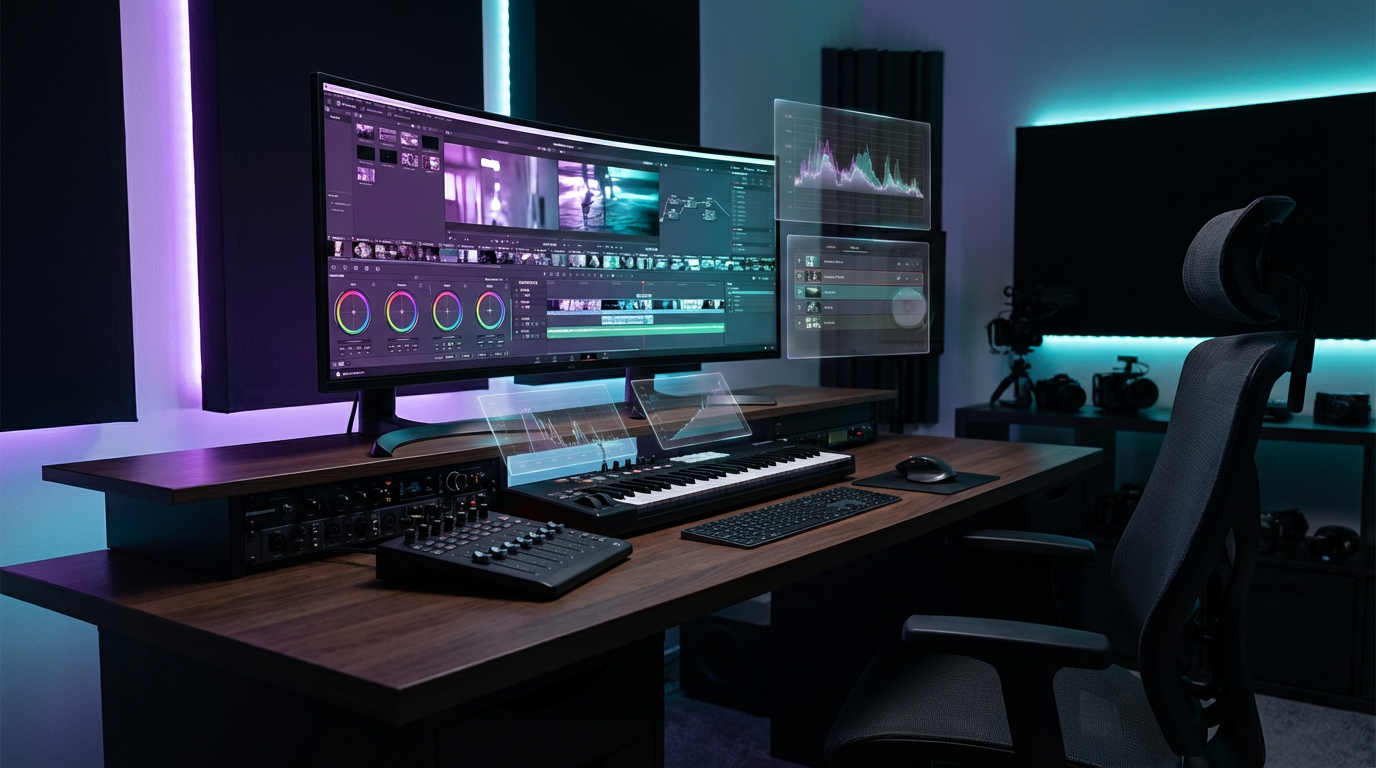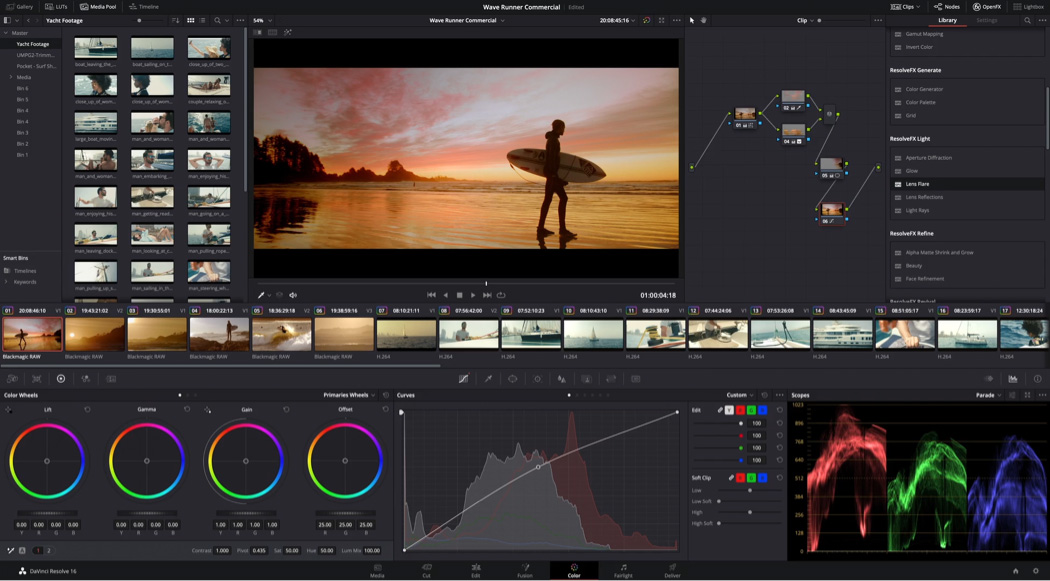
Die meisten Content-Creator verbringen Stunden—manchmal Tage—mit dem Rendern von langen 4K-Videos. Wenn ich Leuten erzähle, dass ich ein dreistündiges 4K-Ambient-Musik-Video in nur zehn Minuten rendern kann, vermuten sie, dass ich übertreibe. Tue ich nicht. Mit dem richtigen Hardware-Setup und optimierten DaVinci Resolve Studio Einstellungen wird das Rendern massiver Videodateien überraschend schnell.
Dieser Artikel erklärt meinen kompletten Rendering-Workflow, von Hardware-Spezifikationen bis zu Export-Einstellungen, damit du deine Render-Zeiten dramatisch reduzieren und mehr Zeit mit Kreativität statt mit Warten verbringen kannst.
Warum Render-Geschwindigkeit bei Long-Form Content wichtig ist
Das Erstellen von Ambient-Musik-Videos, Study-Sessions oder jedem anderen Long-Form Content bringt einzigartige Herausforderungen mit sich. Ein zehnstündiges Video in 4K-Auflösung kann leicht 200GB an Rohmaterial überschreiten. Traditionelle Rendering-Workflows verwandeln dies in einen mehrtägigen Prozess, der die Produktivität killt und Iteration nahezu unmöglich macht.
Schnelles Rendering ermöglicht schnelles Experimentieren. Wenn ich ein Color-Grading-Problem bemerke oder verschiedene Loop-Übergänge testen möchte, kann ich innerhalb von Minuten neu rendern und überprüfen, anstatt ganze Tage in der Render-Queue zu verlieren. Diese Geschwindigkeit verwandelt den kreativen Prozess von mühsam zu flüssig.
Das Hardware-Fundament: Was 10-Minuten-Renders ermöglicht
Bevor wir zu Software-Einstellungen kommen, ist Hardware das Fundament für schnelles Rendering. Mein aktuelles Setup bewältigt 4K H.265 Encoding mit bemerkenswerter Effizienz.
Meine Rendering-Workstation:
| Komponente | Spezifikation | Warum es wichtig ist |
|---|---|---|
| Prozessor | Intel Core Ultra 9 285K (3.70 GHz) | Hohe Single-Thread-Performance für Timeline-Playback; Multi-Core-Power für Encoding |
| RAM | 64GB (63,4GB nutzbar) | Verhindert Memory-Bottlenecks bei 4K-Timelines mit Effekten |
| Grafikkarte | NVIDIA RTX 5080 | Hardware-beschleunigtes H.265 Encoding via NVENC; Echtzeit-Color-Grading |
| Speicher | NVMe SSD (mindestens 1TB) | Schnelle Lese-/Schreibgeschwindigkeiten verhindern I/O-Bottlenecks beim Rendern |
Die RTX 5080 ist hier die Geheimwaffe. NVIDIAs NVENC-Encoder übernimmt H.265-Kompression in Hardware, entlastet die CPU und liefert nahezu Echtzeit-Encoding-Geschwindigkeiten. Ohne GPU-Beschleunigung würde dasselbe dreistündige Video zwei bis drei Stunden zum Rendern brauchen statt zehn Minuten.
Der Intel Core Ultra 9 285K bietet exzellente Multi-Thread-Performance für DaVinci Resolves Render-Engine. Während AMD Ryzen Prozessoren ebenfalls gut funktionieren, bietet Intels Quick Sync Video Technologie zusätzliche Hardware-Encoding-Optionen, die NVENC ergänzen.
RAM-Kapazität ist wichtiger als Geschwindigkeit für Videobearbeitung. DaVinci Resolve cached Frames im Speicher während des Renderns, und 64GB sorgen für reibungslosen Betrieb selbst bei komplexen Timelines mit mehreren Videoebenen, Effekten und Color-Grading-Nodes.
DaVinci Resolve Studio vs kostenlose Version
Eine wichtige Unterscheidung: Ich nutze DaVinci Resolve Studio, die kostenpflichtige Version. Während die kostenlose Version unglaublich mächtig ist, schaltet Studio Hardware-Beschleunigungsfunktionen frei, die für schnelles Rendering essenziell sind.
Wichtige Studio-Vorteile fürs Rendering:
- H.265 (HEVC) Export: Die kostenlose Version limitiert H.265 Encoding und zwingt dich zu H.264, was größere Dateien bei gleicher Qualität produziert
- GPU-Beschleunigung: Studio nutzt NVIDIA und AMD GPU Encoding vollständig, während die kostenlose Version Limitierungen hat
- 10-Bit Farbtiefe: Essenziell für professionelles Color Grading ohne Banding-Artefakte
- Schnellere Render-Geschwindigkeiten: Studios optimierte Render-Engine nutzt alle verfügbare Hardware
Der einmalige Kauf von DaVinci Resolve Studio (aktuell $295) amortisiert sich schnell, wenn man die bei jedem Render gesparte Zeit bedenkt. Für professionelle Content-Creator ist es eine nicht verhandelbare Investition.
Meine exakten DaVinci Resolve Export-Einstellungen
Hier sind die präzisen Einstellungen, die ich auf der Deliver-Seite von DaVinci Resolve Studio nutze. Diese Einstellungen balancieren Dateigröße, Qualität und Render-Geschwindigkeit für YouTube-Uploads.
Format und Codec
Format: MP4
Codec: H.265 (HEVC)
H.265 bietet ungefähr 50% bessere Kompression als H.264 bei gleicher Qualitätsstufe. Für ein dreistündiges 4K-Video bedeutet das eine 80GB-Datei statt 160GB—entscheidend für Upload-Zeiten und Speicherkosten.
Auflösung und Framerate
Auflösung: 3840 x 2160 (4K UHD)
Timeline Framerate: 24 Bilder pro Sekunde
Ich nutze 24fps für Ambient-Videos, weil es ein filmisches Gefühl erzeugt und die Dateigröße im Vergleich zu 30fps oder 60fps reduziert. Bei Musik-Content mit minimaler Bewegung ist der Unterschied zwischen 24fps und höheren Frameraten nicht wahrnehmbar, aber die Dateigrößen-Ersparnis ist substanziell.
Qualitäts-Einstellungen
Quality: Automatic (Best)
Bitrate: 80.000 Kb/s (80 Mbps)
Rate Control: Variable Bitrate
Variable Bitrate (VBR) ist essenziell für Long-Form Content. Sie allokiert mehr Bits für komplexe Szenen (wie detaillierte Cityscapes) und weniger Bits für statische Szenen (wie langsame Schwenks über unscharfe Hintergründe). Das produziert kleinere Dateien als Constant Bitrate (CBR) ohne Qualitätsverlust.
Eine 80 Mbps Bitrate für 4K H.265 ist am oberen Ende und stellt sicher, dass YouTubes Kompression keine Artefakte einführt. Zum Vergleich: YouTube empfiehlt 53-68 Mbps für 4K-Uploads, aber ich bevorzuge den Extra-Spielraum.
Erweiterte Encoding-Einstellungen
Encoding Profile: Auto
Key Frames: Automatic
Frame Reordering: Aktiviert (angehakt)
Preset: Faster
Tuning: High Quality
Two Pass: Deaktiviert
Lookahead: 16 Frames
Enable Adaptive B-frame: Angehakt
AQ Strength: 8
Diese Einstellungen nutzen NVIDIAs NVENC Hardware-Encoder. Das "Faster" Preset priorisiert Geschwindigkeit, während "High Quality" Tuning minimalen Qualitätsverlust sicherstellt. Two-Pass Encoding ist deaktiviert, weil es die Render-Zeit verdoppelt bei marginaler Qualitätsverbesserung—unnötig für YouTube-Uploads.
Der Lookahead-Wert von 16 Frames erlaubt dem Encoder, kommende Frames zu analysieren und Bitrate-Allokation zu optimieren. Höhere Werte verbessern die Qualität leicht, erhöhen aber die Render-Zeit.
Audio-Einstellungen
Codec: AAC
Bitrate: 320 Kb/s
Sample Rate: 48 kHz
Audio-Qualität ist kritisch für Musik-Content. AAC mit 320 Kb/s ist die höchste Qualität, die YouTube unterstützt, und stellt sicher, dass keine hörbaren Kompressions-Artefakte entstehen. Niedrigere Bitraten (wie 128 Kb/s) führen zu merklicher Degradierung in Ambient-Soundscapes.
Der Render-Prozess: Was tatsächlich passiert
Wenn ich "Add to Render Queue" in DaVinci Resolve klicke, passiert Folgendes hinter den Kulissen:
Schritt 1: Timeline-Analyse
DaVinci Resolve analysiert die Timeline und identifiziert, welche Frames gerendert werden müssen. Wenn ich Smart Cache oder Render Cache genutzt habe, werden vorgerenderte Abschnitte übersprungen, was die Render-Zeit weiter reduziert.
Schritt 2: GPU-Encoding
Der NVENC-Encoder auf der RTX 5080 beginnt, Frames zu H.265 zu komprimieren. Das passiert parallel zur CPU-basierten Color-Grading- und Effekt-Verarbeitung. Die GPU übernimmt das Encoding, während die CPU sich auf Fusion-Effekte, Farbkorrekturen und Übergänge konzentriert.
Schritt 3: Audio-Verarbeitung
Gleichzeitig verarbeitet die Fairlight Audio-Engine den Soundtrack und wendet EQ, Kompression oder Normalisierung an, bevor zu AAC encodiert wird. Audio-Rendering ist typischerweise schnell und wird nicht zum Bottleneck.
Schritt 4: Datei-Schreiben
Die encodierten Video- und Audio-Streams werden in einen MP4-Container gemultiplext und auf die NVMe SSD geschrieben. Schneller Speicher stellt sicher, dass dieser finale Schritt das Gesamt-Rendering nicht verlangsamt.
Für ein dreistündiges Video ist dieser gesamte Prozess in ungefähr zehn Minuten abgeschlossen. Ein zehnstündiges Video braucht etwa dreißig Minuten—immer noch bemerkenswert schnell im Vergleich zu traditionellen Workflows.
DaVinci Resolve für maximale Geschwindigkeit optimieren
Über Export-Einstellungen hinaus beeinflussen mehrere DaVinci Resolve Präferenzen und Projekt-Einstellungen die Render-Geschwindigkeit.
GPU-Beschleunigung aktivieren
Navigiere zu Preferences > System > Memory and GPU und stelle sicher, dass deine NVIDIA GPU für Processing ausgewählt ist. Unter Preferences > Video and Audio I/O aktiviere "Use NVIDIA GPU for decode" und "Use NVIDIA GPU for encode."
Optimized Media und Render Cache nutzen
Für komplexe Timelines mit schweren Effekten generiere Optimized Media oder Render Cache vor dem finalen Export. Das rendert Effekte und Color Grading vor, sodass das finale Rendering nur noch Encoding übernehmen muss.
Gehe zu Playback > Render Cache > Smart, um automatisch Abschnitte zu cachen, die von Vor-Rendering profitieren.
Unnötige Effekte während des Renderns deaktivieren
Wenn du Effekte für Preview-Zwecke hinzugefügt hast (wie On-Screen-Timer oder Wasserzeichen), deaktiviere sie vor dem Rendern, falls sie im finalen Export nicht benötigt werden. Jeder aktive Effekt fügt Processing-Overhead hinzu.
Hintergrund-Anwendungen schließen
Rendering ist ressourcenintensiv. Schließe Webbrowser, Streaming-Dienste und andere Anwendungen, um CPU, GPU und RAM für DaVinci Resolve freizugeben.
Häufige Rendering-Fehler vermeiden
Selbst mit leistungsstarker Hardware können bestimmte Fehler das Rendering verlangsamen oder suboptimale Ergebnisse produzieren.
H.264 statt H.265 nutzen
H.264 ist älter und weniger effizient. Für 4K-Content produziert H.265 signifikant kleinere Dateien bei gleicher Qualität. Der einzige Grund, H.264 zu nutzen, ist Kompatibilität mit sehr alten Geräten, was für YouTube-Uploads selten ein Problem ist.
Bitrate zu niedrig setzen
YouTube komprimiert Uploads neu, daher ist eine hochqualitative Quelle essenziell. Ein 4K-Video mit 20 Mbps encodiert sieht nach YouTubes Kompression merklich schlechter aus als eines mit 80 Mbps.
Auf HDD statt SSD rendern
Festplatten (HDDs) sind zu langsam für 4K-Rendering. Rendere immer auf eine SSD, um I/O-Bottlenecks zu vermeiden.
Timeline-Auflösungs-Mismatch ignorieren
Wenn deine Timeline-Auflösung nicht mit deiner Export-Auflösung übereinstimmt, muss DaVinci Resolve jeden Frame skalieren, was Processing-Zeit hinzufügt. Setze deine Timeline-Auflösung immer auf die beabsichtigte Export-Auflösung.
Hardware-Encoding vergessen zu aktivieren
Wenn GPU-Beschleunigung deaktiviert ist, fällt das Rendering auf CPU-only Encoding zurück, was dramatisch langsamer ist. Verifiziere immer GPU-Einstellungen vor einem langen Render.
Dateigröße und Upload-Überlegungen
Ein dreistündiges 4K-Video mit 80 Mbps resultiert in einer 80GB-Datei. Während das groß erscheint, ist es notwendig, um Qualität durch YouTubes Kompression zu erhalten.
Upload-Strategie:
Ich lade direkt zu YouTube mit einer kabelgebundenen Ethernet-Verbindung hoch. Mit Gigabit-Internet lädt eine 80GB-Datei in ungefähr 15-20 Minuten hoch. Wenn dein Internet langsamer ist, erwäge über Nacht zu rendern und während Off-Peak-Zeiten hochzuladen.
Speicher-Management:
Ich behalte Raw-Projektdateien und finale Renders auf separaten Laufwerken. Sobald ein Video erfolgreich hochgeladen und veröffentlicht ist, archiviere ich das Rohmaterial auf externen Speicher und lösche lokale Kopien, um Platz freizugeben.
Reale Render-Zeit-Vergleiche
Um meinen Workflow in Perspektive zu setzen, hier Render-Zeit-Vergleiche für ein dreistündiges 4K-Video über verschiedene Setups:
| Setup | Render-Zeit | Notizen |
|---|---|---|
| Mein Setup (RTX 5080 + Core Ultra 9) | 10 Minuten | H.265 Hardware-Encoding |
| Mittelklasse-PC (GTX 1660 + Ryzen 5) | 2-3 Stunden | Limitierter GPU-Encoding-Support |
| Ältere Workstation (nur CPU-Encoding) | 6-8 Stunden | Keine Hardware-Beschleunigung |
| MacBook Pro M2 Max | 20-30 Minuten | Exzellent, aber langsamer als dediziertes NVIDIA NVENC |
Der Unterschied ist dramatisch. In eine High-End-GPU speziell für Video-Encoding zu investieren, verwandelt den Workflow von mühsam zu effizient.
Ist dieser Workflow das Richtige für dich?
Dieser Workflow ist ideal, wenn du regelmäßig Long-Form Content erstellst—Ambient-Musik-Videos, Study-Sessions, Podcasts mit Video oder jedes Projekt, bei dem Render-Zeit ein Bottleneck ist.
Du brauchst diesen Workflow, wenn:
- Du regelmäßig Videos länger als eine Stunde renderst
- Du an Projekten iterierst und schnelle Turnaround-Zeiten brauchst
- Du 4K-Content zu YouTube oder anderen Plattformen hochlädst
- Du Qualität maximieren und Dateigröße minimieren willst
Du brauchst ihn vielleicht nicht, wenn:
- Du Short-Form Content erstellst (unter 10 Minuten)
- Du nur gelegentlich renderst und Zeit keine Einschränkung ist
- Du in 1080p oder niedrigeren Auflösungen arbeitest
Für Creator in der ersten Kategorie ist die Kombination aus DaVinci Resolve Studio, einer leistungsstarken GPU und optimierten Einstellungen transformativ.
Fazit: Geschwindigkeit ermöglicht Kreativität
Rendering sollte kein kreativer Bottleneck sein. Mit der richtigen Hardware und Einstellungen rendern selbst massive 4K-Projekte in Minuten statt Stunden. Diese Geschwindigkeit ermöglicht Experimentieren, schnelle Iteration und einen angenehmeren kreativen Prozess.
Mein Workflow—DaVinci Resolve Studio, eine RTX 5080, H.265 Encoding mit 80 Mbps—liefert professionelle Qualität in einem Bruchteil der Zeit, die traditionelle Methoden benötigen. Wenn du Long-Form Content erstellst, wird die Investition in ähnliche Tools und die Optimierung deiner Einstellungen sich in gesparter Zeit und gewonnener kreativer Freiheit auszahlen.
Das nächste Mal, wenn jemand fragt, wie ich zehnstündige Videos so schnell rendere, ist die Antwort einfach: die richtigen Tools, die richtigen Einstellungen und ein für Geschwindigkeit gebauter Workflow.
TAGS
Share this article